Contents — find the section you need
Change parameters and verify
Open the panel, then press Run to load Python. You can stop execution and reset parameters. Results are computed on this device. No Python installation is required.
Local execution steps below are optional for reproducing the source results; they are not required for the browser experiment.
The experiment controls are in English.
Explore storage boundaries in the browser
The panel models storage ownership and container connections. It does not run Docker or access your files. Choose a storage location and operation, then compare the stage diagram and evidence table. Local Docker commands below are optional follow-up work.
Each run starts from the same prepared fixture: /data/note.txt contains saved in the selected store, and /tmp/note.txt contains temporary in the container's writable layer. The image has no initial files at /data; application startup creates no files. The selected mount's read-only setting is applied after preparation. At the end, the model attempts to write a different file, /data/probe.txt. That marker never recreates the original note.
The named volume uses the default project-scoped name alpha_data. The external volume is pre-existing shared_data; the bind mount always uses the same absolute daemon-host path /srv/demo-data. Both fixed sources remain the same when changing projects. No custom volume name, anonymous volumes, tmpfs, driver options, image-to-volume population, permissions beyond the read-only mount, or other containers are modeled.
“Switch project” means alpha is taken down without deleting volumes, then beta is started. “Switch back” repeats that operation to return to alpha. A new empty beta_data can hide access to the original note without deleting alpha_data. The diagram distinguishes retained data from a readable connection. The read-only control applies only to mounts and has no effect in the writable-layer case.
Try these comparisons: restart versus recreate for the writable layer; ordinary down versus down --volumes for a managed named volume; project switching versus switching back; and managed versus external volumes during cleanup. Each removal scenario includes starting the service again. Metrics are binary outcomes (1 = yes, 0 = no), not probabilities, timings, or recovery guarantees.
Rules were checked against Docker storage, volume lifecycle, bind mounts, Compose down and Compose volume names/external volumes on 2026-09-20. This is a documentation-based state model, not a live Engine conformance test. It models neither host failure nor application/database consistency. Continue to the restore Lab to examine separate recovery checks.
Membuat ulang kontainer tidak secara otomatis mengembalikan datanya. Identifikasi batas penyimpanan dan apa yang sebenarnya dihapus oleh suatu operasi. Ini adalah latihan berbasis dokumentasi, diperiksa pada 2026-09-07; tidak ada kontainer atau volume produksi yang digunakan untuk pengujian.
Tiga lokasi penyimpanan
| Lokasi | Batas kepemilikan | Setelah penghapusan kontainer |
|---|---|---|
| Lapisan yang dapat ditulis | Kontainer individual | Perubahan pada lapisan tersebut hilang |
| Volume bernama | Penyimpanan independen yang dikelola Docker | Tetap ada kecuali volume dihapus |
| Pemasangan terikat | Jalur host Docker yang ditentukan | Tetap ada sebagai file host |
Menghentikan/memulai ulang berbeda dengan menghapus/membuat ulang. Dokumentasi volume menjelaskan siklus hidup. Volume anonim memiliki aturan pembersihan yang berbeda, termasuk perilaku dengan --rm; latihan ini menggunakan volume bernama.
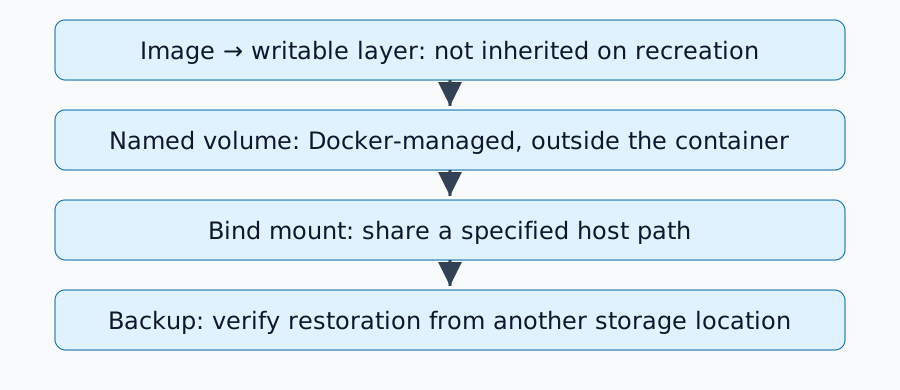
Latihan membuat volume bernama sekali pakai
Contoh ini mengasumsikan Docker Engine, kontainer Linux, dan alpine:3.21. Catat versi Docker dan digest gambar yang sebenarnya diunduh; tag dapat berubah. Periksa dengan docker volume ls bahwa duskcoil-lifetime-demo tidak digunakan sebelum melanjutkan:
docker volume create duskcoil-lifetime-demo
docker run --rm --mount type=volume,source=duskcoil-lifetime-demo,target=/data alpine:3.21 sh -c 'echo saved > /data/note.txt; echo temporary > /tmp/note.txt'
docker run --rm --mount type=volume,source=duskcoil-lifetime-demo,target=/data,readonly alpine:3.21 sh -c 'cat /data/note.txt; test ! -e /tmp/note.txt'
Diharapkan: kontainer kedua membaca data yang disimpan dari /data/note.txt, sementara /tmp/note.txt-nya tidak ada. Menghapus kontainer pertama membuat volume bernama tetap utuh. Mount kedua hanya dapat dibaca. Jangan mengganti nama atau data layanan produksi ke dalam latihan ini.
Host mana yang digunakan oleh bind mount?
Bind mount mengacu pada jalur di host daemon Docker. Daemon jarak jauh mungkin tidak dapat melihat file PC lokal Anda. Docker Desktop juga memperkenalkan batasan VM.
Periksa Mount di docker inspect <container> untuk Tipe, Sumber, Tujuan, dan RW. Atasi mount /data yang salah sebelum mengubah pengaturan aplikasi. Mount dapat menutupi file yang ada di bawahnya; bedakan data yang hilang dari data yang disembunyikan oleh direktori mount lain.
Baca semantik pembersihan Compose
docker compose down berbeda dari docker compose down --volumes. Yang terakhir juga menargetkan volume bernama yang dideklarasikan di Compose; volume eksternal dikelola secara terpisah. Periksa referensi down.
Mengubah nama proyek Compose dapat memilih volume bernama baru dan membuat aplikasi tampak kosong. Periksa nama sebenarnya sebelum berasumsi terjadi kerusakan. Hapus volume latihan hanya dengan nama spesifiknya setelah memastikan volume tersebut tidak lagi diperlukan; pembersihan volume secara luas bukan bagian dari prosedur ini.
Persistensi Bukanlah Cadangan
Volume memisahkan data dari siklus hidup kontainer, tetapi tidak selalu melindungi dari kegagalan disk atau penghapusan aplikasi. Simpan salinan terpisah dan uji pemulihan. Menyalin file basis data langsung mungkin tidak konsisten: gunakan prosedur pencadangan yang didukung aplikasi atau kondisi pematian/snapshot yang sesuai.
Gambar dan file Compose saja mungkin mengabaikan unggahan pengguna dan basis data. Basis data saja mungkin mengabaikan konfigurasi, kunci, atau versi yang kompatibel yang diperlukan. Konfirmasikan bahwa aplikasi yang dipulihkan benar-benar dapat membaca datanya.
Buat Inventaris Penyimpanan
Untuk setiap layanan, catat jalur di dalam kontainer, pemasangan aktual, kepemilikan/izin, metode pencadangan, tujuan pemulihan, dan tanggal pengujian pemulihan terakhir. Kemudian lanjutkan dengan latihan pemulihan server rumahan untuk memeriksa apakah data penting tercakup.
Komentar
Silakan masuk terlebih dahulu.
Belum ada data.